Алексей Стахнов - Linux
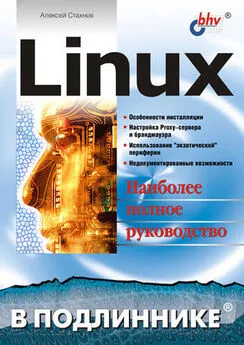
- Название:Linux
- Автор:
- Жанр:
- Издательство:неизвестно
- Год:неизвестен
- ISBN:нет данных
- Рейтинг:
- Избранное:Добавить в избранное
-
Отзывы:
-
Ваша оценка:
Алексей Стахнов - Linux краткое содержание
Книга посвящена операционной системе Linux. Приводятся подробные сведения о ее особенностях и возможностях, идеологии файловой системы, инсталляции и основных командах, вопросах компиляции ядра, настройках и сервисах. Большое внимание уделяется организации на базе Linux различных серверов и служб: электронной почты, WWW, FTP, INN, Proxy, NTP, а также проблемам администрирования сети, обеспечения безопасной работы и другим вопросам. Описаны способы настройки под Linux рабочих станций, в т. ч. и бездисковых, установки и эксплуатации на них графических сред типа X Window, а также конфигурирование модемных соединений, принтеров и сканеров, отладка взаимодействия с Linux-машинами такой «экзотической» периферии, как карманные компьютеры, мобильные телефоны, TV-тюнеры и т. п. Рассматриваемые в книге конфигурационные файлы и структура каталогов соответствуют дистрибутиву Red Hat Linux 7.x, тем не менее, при минимальной адаптации все упоминаемые в книге пакеты устанавливаются в любом дистрибутиве Linux.
Для начинающих администраторов или пользователей Linux.
Linux - читать онлайн бесплатно ознакомительный отрывок
Интервал:
Закладка:
В том случае, если вы хотите установить самую свежую версию пакета, и она досталась вам в виде tgz-архива, содержащего исходный текст, процесс установки несколько растянется.
1. Сначала необходимо распаковать архив, содержащий исходные коды Samba. Для этого надо выполнить следующую команду:
tar zxvf samba-X.X.X.tar.gz
где Х.Х. Х – версия пакета.
2. После этого следует перейти в каталог /source, где находятся исходные коды. Находится там и файл Readme, в котором подробно рассказано, как сконфигурировать и произвести компиляцию и установить пакет Samba.
3. Набрать в командной строке и выполнить следующую команду:
configure –with-smbmount –prefix=/opt/samba –with-msdfs
Эта команда производит конфигурирование файла Makefile.
...
Замечание
Команда указывает компилировать утилиту smbmount, которая служит для монтирования SMB-ресурсов в файловую структуру Linux, включает поддержку Microsoft DFS и указывает устанавливаться после компиляции в каталог /opt/samba. Конечно, есть еще много параметров, которые можно назначить. Подробную информацию о них следует смотреть в документации к пакету Samba или вызывать командой configure –help.
4. Следующим действием необходимо набрать в командной строке make и нажать . Этой командой запускается процесс компиляции программного пакета.
5. Если в ходе работы программы make не появились сообщения об ошибках, то надо выполнить команду make install. Эта команда установит пакет Samba в ее родной каталог (если действовать в точности по инструкции, то файлы попадут в каталог /opt/samba).
Теперь на очереди конфигурирование сервера Samba.
Файл конфигурации smb.conf
Самое трудное, с чем можно столкнуться при настройке сервера Samba, – это создание (или редактирование) файла конфигурации. Все файлы конфигурации Samba находятся в каталоге /etc/samba. Вот список файлов, которые обычно содержатся в этом каталоге:
• lmhosts – содержит список хостов и соответствующих им адресов;
• smbpasswd – содержит пароли пользователей сервера Samba;
• smbusers – файл, предназначенный для хранения списка пользователей, которым разрешен доступ к ресурсам Samba;
• smb.conf – главный конфигурационный файл сервера.
Примеры конфигурационных файлов, поставляемых с пакетом, находятся в каталоге /examples. В большинстве случаев их можно использовать в качестве базы.
Далее приведен файл smb.conf сервера Samba, который успешно функционирует на одном из серверов.
Листинг 24.1. Пример файла smb.conf
# This is the main Samba configuration file. You should read the
# smb.conf(5) manual page in order to understand the options listed
# here. Samba has a huge number of configurable options (perhaps too
# many!) most of which are not shown in this example
# Any line which starts with a; (semi-colon) or a # (hash)
# is a comment and is ignored. In this example we will use a #
# for commentry and a; for parts of the config file that you
# may wish to enable
# NOTE: Whenever you modify this file you should run the command "testparm"
# to check that you have not many any basic syntactic errors.
#
#======================= Global Settings ==============================
[global]
# workgroup = NT-Domain-Name or Workgroup-Name workgroup = Kontora
# server string is the equivalent of the NT Description field server string = Kontora Samba Server
# This option is important for security. It allows you to restrict
# connections to machines which are on your local network. The
# following example restricts access to two С class networks and
# the «loopback» interface. For more examples of the syntax see
# the smb.conf man page
hosts allow = 192.168.10. 193.166.17.
# if you want to automatically load your printer list rather
# than setting them up individually then you\'ll need this
# printcap name = /etc/printcap
# load printers = yes
# It should not be necessary to spell out the print system type unless
# yours is non-standard. Currently supported print systems include:
# bsd, sysv, pip, lprng, aix, hpux, qnx
printing = lprng
# Uncomment this if you want a guest account, you must add this to /etc/passwd
# otherwise the user «nobody» is used
; guest account = pcguest
# this tells Samba to use a separate log file for each machine
# that connects
log file = /var/log/samba/%m.log
# Put a capping on the size of the log files (in Kb). max log size = 0
# Security mode. Most people will want user level security. See
# security_level.txt for details.
security = user
# Use password server option only with security = server or
# security = domain
; password server =
# Password Level allows matching of _n_ characters of the password for
# all combinations of upper and lower case.
; password level = 8
; username level = 8
# You may wish to use password encryption. Please read
# ENCRYPTION.txt, Win95.txt and WinNT.txt in the Samba documentation.
# Do not enable this option unless you have read those documents
encrypt passwords = yes
smb passwd file = /etc/samba/smbpasswd
# The following are needed to allow password changing from Windows to
# update the Linux sytsem password also.
# NOTE: Use these with \'encrypt passwords\' and \'smb passwd file\' above.
# NOTE2: You do NOT need these to allow workstations to change only
# the encrypted SMB passwords. They allow the Unix password
# to be kept in sync with the SMB password.
; unix password sync = Yes
; passwd program = /usr/bin/passwd %u
# Unix users can map to different SMB User names ; username map = /etc/samba/smbusers
# Using the following line enables you to customise your configuration
# on a per machine basis. The %m gets replaced with the netbios name
# of the machine that is connecting
; include = /etc/samba/smb.conf.%m
# Most people will find that this option gives better performance.
# See speed.txt and the manual pages for details
socket options = tcp_nodelay SO_RCVBUF=8192 SO_SNDBUF=8192
# Configure Samba to use multiple interfaces
# If you have multiple network interfaces then you must list them
# here. See the man page for details.
interfaces = 192.168.10.0/24
# Configure remote browse list synchronisation here
# request announcement to, or browse list sync from:
# a specific host or from / to a whole subnet (see below)
; remote browse sync = 192.168.3.25 192.168.5.255
# Cause this host to announce itself to local subnets here
; remote announce = 192.168.1.255 192.168.2.44
# Browser Control Options:
# set local master to no if you don\'t want Samba to become a master
# browser on your network. Otherwise the normal election rules apply
; local master = no
# OS Level determines the precedence of this server in master browser
# elections. The default value should be reasonable
; os level = 33
# Domain Master specifies Samba to be the Domain Master Browser. This
# allows Samba to collate browse lists between subnets. Don\'t use this
# if you already have a Windows NT domain controller doing this job
; domain master = yes
# Preferred Master causes Samba to force a local browser election on
# startup and gives it a slightly higher chance of winning the election
; preferred master = yes
# Enable this if you want Samba to be a domain logon server for
# Windows95 workstations.
; domain logons = yes
# if you enable domain logons then you may want a per-machine or
# per user logon script
# run a specific logon batch file per workstation (machine)
; logon script = %m.bat
# run a specific logon batch file per username
; logon script = %U.bat
# All NetBIOS names must be resolved to IP Addresses
# \'Name Resolve Order\' allows the named resolution mechanism to be
# specified the default order is "host lmhosts wins bcast".
name resolve order = wins lmhosts bcast
# Windows Internet Name Serving Support Section:
# WINS Support – Tells the NMBD component of Samba to enable it\'s WINS Server
wins support = yes
# WINS Server – Tells the NMBD components of Samba to be a WINS Client
# Note: Samba can be either a WINS Server, or a WINS Client, but NOT both
; wins server = w.x.y.z
# WINS Proxy – Tells Samba to answer name resolution queries on
# behalf of a non WINS capable client, for this to work there must be
# at least one WINS Server on the network. The default is NO.
; wins proxy = yes
# DNS Proxy – tells Samba whether or not to try to resolve NetBIOS names
# via DNS nslookups. The built-in default for versions 1.9.17 is yes,
# this has been changed in version 1.9.18 to no.
Интервал:
Закладка: